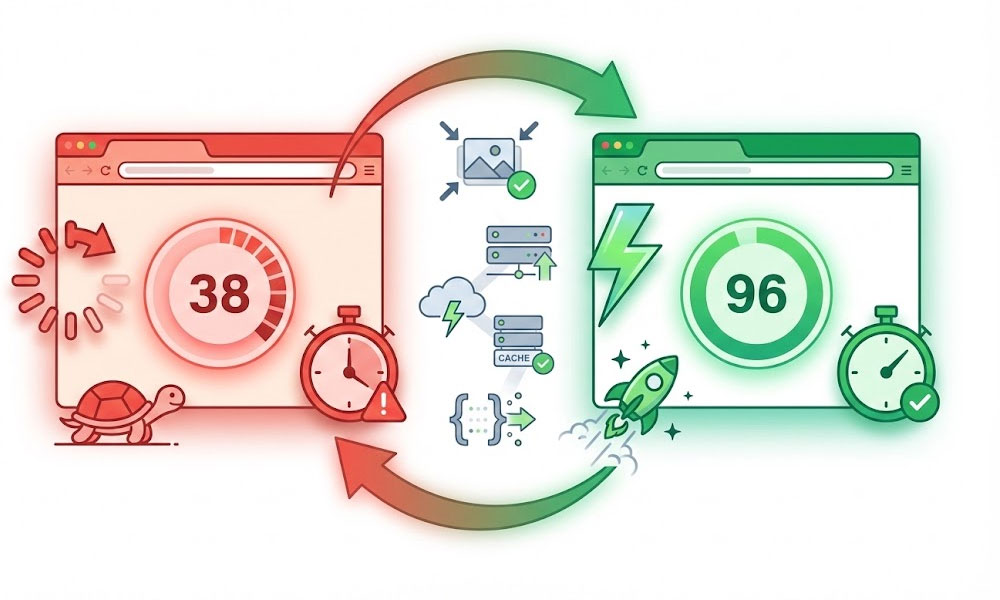
A client contacted me on Upwork because their WordPress site took 7.3 seconds to load on mobile. PageSpeed Insights score: 28 out of 100. Core Web Vitals: all three metrics failing. They had a clean design, reasonable content, and a legitimate business. But 34 active plugins, unoptimized images averaging 2MB each, no caching, shared hosting at $4/month, and render-blocking CSS from 6 different plugins loading on every page. The site was drowning under its own weight.
Three days later: load time 1.6 seconds. PageSpeed score 94. All three Core Web Vitals passing. I didn’t touch the content. I didn’t change the design. I applied the same 12 methods below that I use across every speed optimization project on Upwork. These aren’t theoretical suggestions from WordPress documentation. They’re the exact steps, in the exact order, that have worked across 400+ projects.
Method 1: Fix Your Hosting First
Nothing else on this list matters if your server is slow. A $4/month shared hosting plan puts your site on a server with hundreds of other websites competing for the same CPU, memory, and bandwidth. Server response time (TTFB) on budget shared hosting regularly exceeds 800ms. Google recommends TTFB under 200ms. Your site is already 600ms behind before a single image loads.
What to look for in hosting. TTFB consistently under 200ms. PHP 8.2+ support (PHP 8.x runs 20-30% faster than PHP 7.4). LiteSpeed or Nginx server architecture (not Apache on shared hosting). Server-level caching capabilities. SSD or NVMe storage. Data center geographically close to your target audience. One-click staging environment for safe testing.
Recommended hosting by budget. Budget tier ($10-$20/month): Cloudways DigitalOcean, SiteGround GrowBig. These deliver professional performance without enterprise pricing. Professional tier ($25-$50/month): Cloudways Vultr HF, Kinsta Starter, WP Engine. Noticeable improvement in TTFB and concurrent user handling. High-traffic tier ($50-$150/month): Cloudways Vultr HF 4GB+, Kinsta Business, dedicated servers for sites handling 100,000+ monthly visitors or heavy WooCommerce traffic.
Expected impact. The hosting upgrade alone typically improves TTFB by 40-60% and reduces total load time by 1-2 seconds. It’s the single highest-impact change you can make because every other optimization on this list delivers its content through this server. A fast site on slow hosting is still a slow site.
Buy your domain separately from hosting (Namecheap or Cloudflare). This makes future migration significantly easier since your domain isn’t locked to your hosting provider.
Method 2: Install and Configure Caching Properly
Without caching, WordPress rebuilds every page from scratch for every single visitor. Each page view triggers PHP execution, database queries, theme rendering, and plugin processing. Caching serves pre-built HTML pages instead, skipping the entire rebuild process for returning content.
My recommendation: WP Rocket ($59/year). It enables page caching, browser caching, GZIP compression, lazy loading, critical CSS generation, and JavaScript delay in one plugin with minimal configuration. Most sites see 40-60% improvement from WP Rocket alone. Alternative options: LiteSpeed Cache (free, excellent, but requires LiteSpeed server), W3 Total Cache (free, powerful, but significantly more complex to configure correctly).
Critical settings to configure. Page caching enabled (serves static HTML instead of running PHP per visit). Browser caching enabled (tells returning visitors’ browsers to reuse downloaded CSS, JavaScript, and images instead of re-downloading them). GZIP or Brotli compression enabled (compresses text-based files by 60-80% during transfer). Cache preloading enabled (builds cached versions of pages before visitors arrive, so the first visitor gets the fast version). Separate mobile cache enabled if your site serves different layouts on mobile versus desktop.
What caching does NOT fix. Caching accelerates delivery of whatever you already have. It doesn’t fix a slow server (that’s a hosting problem), oversized images (that’s an image optimization problem), or render-blocking code (that’s a code optimization problem). Sites that install a caching plugin and call it “speed optimized” are usually still slow because caching is one piece of a twelve-piece solution.
Method 3: Optimize Every Image on Your Site
Images are typically 50-80% of a page’s total file size. One unoptimized photo from a modern smartphone weighs 3-5MB. A page with five unoptimized photos can weigh 15-25MB. The same five photos properly optimized: 200-400KB total. That’s a 97% reduction in the largest single contributor to page weight.
Format conversion. Convert all images to WebP format, which delivers 30-50% smaller files than JPEG at equivalent visual quality. Every modern browser supports WebP. ShortPixel ($4.99/month, processes existing library and future uploads), Imagify (free tier available), or Smush handle this automatically on upload and can bulk-convert your existing image library.
Dimension control. If your content area is 800 pixels wide, uploading a 4000-pixel-wide image is waste. The browser downloads the full 4000-pixel file, then CSS resizes it visually to 800 pixels on screen. The extra 3200 pixels of data transfer served no purpose. Resize images to maximum display dimensions before uploading. For retina support, upload at 2x display size (1600px for an 800px content area). WordPress generates responsive sizes via srcset automatically.
Lazy loading. Images below the fold (not visible when the page first loads) should load only when the user scrolls near them. WordPress 5.5+ includes native lazy loading. WP Rocket enhances it with threshold control. One critical rule: never lazy-load your hero image or LCP (Largest Contentful Paint) element. Lazy loading the LCP image delays the largest visible element and directly fails your Core Web Vitals LCP score.
Expected impact. Image optimization alone typically reduces page weight by 60-80% and shaves 2-4 seconds off load time. On image-heavy pages like portfolios, case studies, and WooCommerce product galleries, the improvement is even larger.
Method 4: Remove Unnecessary Plugins
Every active plugin loads PHP code on the server, adds CSS stylesheets and JavaScript files to the browser, and runs database queries. Some plugins are efficient and add negligible weight. Others are bloated nightmares that add 200-500ms to every page load regardless of whether their functionality is used on that page.
The audit process. List every active plugin. For each one, answer three questions: Is this plugin necessary for the site to function? Can an existing plugin already handle this function (eliminating redundancy)? Does this plugin load its assets on every page or only where needed? I regularly reduce client sites from 30+ active plugins to 12-15 with zero loss of functionality.
Common plugins to remove. Social sharing plugins (replace with simple HTML share links, zero JavaScript required). Slider plugins used once on the homepage but loading CSS and JavaScript on every page. Multiple SEO plugins (keep RankMath, delete everything else). Analytics plugins (replace with a GA4 tag directly in the header, no plugin overhead). “Coming soon” and staging plugins left active months after launch. Security plugins running alongside hosting-level security (redundant scanning and firewall processing).
Asset loading control. For plugins you need but that load assets everywhere, use Asset CleanUp or Perfmatters to disable their CSS and JavaScript on pages where the functionality isn’t used. Example: your contact form plugin should load its assets on the contact page only, not on your homepage, blog posts, and product pages. This per-page control can eliminate 5-15 unnecessary HTTP requests per page.
Method 5: Eliminate Render-Blocking Resources
Render-blocking CSS and JavaScript in the document prevent the browser from painting anything on screen until those files are fully downloaded and processed. A page with 8 render-blocking stylesheets and 6 render-blocking scripts forces the visitor to stare at a white screen while all 14 files download sequentially. This directly destroys your Core Web Vitals LCP score.
CSS optimization. Inline critical CSS (the styles needed for the above-the-fold content your visitor sees first) directly in the HTML . Defer all non-critical CSS to load after the page renders. WP Rocket’s “Optimize CSS Delivery” handles this automatically. Additionally, remove unused CSS from theme and plugin stylesheets. Most themes ship with CSS for features you never use (sliders, accordions, galleries you don’t have). WP Rocket’s “Remove Unused CSS” or PurgeCSS strips this dead weight.
JavaScript optimization. Defer non-critical JavaScript so it loads after the page renders instead of blocking it. Delay JavaScript until user interaction (WP Rocket’s “Delay JavaScript execution” or Flying Scripts plugin). This means scripts for analytics, chat widgets, social embeds, and tracking pixels don’t block the initial page paint. The visitor sees your content immediately while background scripts load silently.
Font optimization. Preload the fonts used in your above-the-fold content so the browser starts downloading them immediately. Host Google Fonts locally instead of loading from Google’s CDN (eliminates a third-party DNS lookup that adds 100-300ms). Use font-display: swap so text renders immediately with a system fallback font while your custom font loads in the background, preventing invisible text during loading.
Method 6: Set Up a CDN
A Content Delivery Network caches your static files (images, CSS, JavaScript, fonts) on servers distributed worldwide. Without a CDN, a visitor in London downloads every file from your server in Dallas. With a CDN, they download from a London edge server. The difference: 100-500ms saved per request, multiplied by dozens of requests per page.
Recommended CDN options. Cloudflare free tier handles most sites (includes CDN, DDoS protection, and basic optimization). Cloudflare Pro ($20/month) adds automatic image optimization (Polish) and mobile optimization (Mirage). BunnyCDN ($0.01/GB) for sites wanting pure CDN without Cloudflare’s proxy architecture. For WooCommerce stores, Cloudflare APO ($5/month) caches dynamic pages at the edge, which standard CDNs don’t do because WooCommerce pages have personalized content (cart, login state).
CDN configuration essentials. Cache static assets with long expiry headers (1 year for versioned files like style.css?v=2.1). Enable Brotli compression at the edge for better compression ratios than GZIP. Configure page rules to exclude WordPress admin (/wp-admin/*) and login pages from caching. Set up cache purging to trigger automatically when you publish or update content.
Method 7: Clean Your Database
WordPress databases accumulate significant bloat over time. Every time you hit “Save Draft,” WordPress creates a post revision. A blog post saved 30 times during writing has 30 revisions stored in the database. Multiply by 100 blog posts: 3,000 revision rows occupying space and slowing queries. Add auto-drafts, trashed posts, spam comments, expired transient data, orphaned metadata from deleted plugins, and WooCommerce session data, and a 3-year-old site can have a database 10x larger than necessary.
Cleanup actions. Limit post revisions to 3 (add define('WP_POST_REVISIONS', 3); to wp-config.php). Delete existing revisions beyond that limit. Remove all auto-drafts and trashed content. Clean spam and trashed comments. Delete expired transient data (temporary cached data from plugins that wasn’t cleaned up). Remove orphaned metadata left behind by deleted plugins (options table entries, post meta, user meta that reference plugins no longer installed).
Recommended tools. WP-Optimize or Advanced Database Cleaner for one-time and scheduled cleanup. Schedule weekly automated cleanups for transients and revisions. Optimize database tables monthly (equivalent to defragmenting). For WooCommerce stores, pay special attention to wp_woocommerce_sessions and order-related transients that WooCommerce generates heavily and rarely cleans up automatically.
Method 8: Optimize Core Web Vitals Specifically
Google’s Core Web Vitals are three performance metrics that directly influence search rankings. General speed optimization covers most of the ground, but passing all three CWV thresholds requires targeted work on each metric. Full deep dive on my Core Web Vitals guide and speed optimization service page.
LCP (Largest Contentful Paint) – target under 2.5 seconds. This measures when the largest visible element renders on screen. Usually your hero image, hero heading, or featured image. Fix: optimize the hero image specifically (WebP, correct dimensions, preloaded), ensure it’s NOT lazy-loaded, inline critical CSS for the above-the-fold section so the hero area doesn’t wait for external stylesheets, and ensure fast TTFB from quality hosting.
INP (Interaction to Next Paint) – target under 200ms. This measures how quickly the page responds to user interactions (clicks, taps, keyboard input). The visitor clicks a button and INP measures how long before the browser shows a visual response. Fix: defer and delay all non-essential JavaScript, minimize main thread work by removing heavy scripts, break up long JavaScript tasks into smaller chunks, and reduce the total number of event listeners on interactive elements.
CLS (Cumulative Layout Shift) – target under 0.1. This measures visual stability. Elements jumping around during loading (an image loading and pushing text down, a font swap reflowing paragraphs, an ad injecting and shifting content) all cause CLS. Fix: set explicit width and height attributes on every image and embed (so the browser reserves space before the content loads), preload fonts to prevent text reflow when custom fonts replace fallback fonts, and reserve space for any dynamically loaded content.
Method 9: Enable Brotli/GZIP Compression
Text-based files (HTML, CSS, JavaScript, JSON, XML) compress dramatically during network transfer. A 100KB CSS file compresses to approximately 20KB over the network with GZIP, and even smaller with Brotli. Without compression, visitors download full uncompressed files for every request.
Brotli is the modern standard (20-30% better compression than GZIP). Supported by all modern browsers and most hosting providers. Cloudflare enables Brotli at the CDN level automatically. LiteSpeed servers enable it natively. For Apache/Nginx servers, check your hosting control panel or .htaccess configuration. WP Rocket enables compression automatically during its setup.
Verification. Check if compression is active at tools.keycdn.com/http2-test or in browser DevTools (Network tab > Response Headers > look for content-encoding: br or content-encoding: gzip). If neither is present, compression isn’t enabled and your visitors are downloading full uncompressed files unnecessarily.
Method 10: Preload Critical Resources
Resource hints tell the browser to start loading important assets before it discovers them naturally in the HTML document. Without hints, the browser discovers resources sequentially as it parses HTML. With hints, it starts loading critical files immediately.
Preload (highest priority). Use for: hero image, primary font files, and critical above-the-fold CSS. tells the browser to start downloading the hero image immediately instead of waiting until it encounters the
Preconnect (establish early connection). Use for third-party domains you know you’ll need: Google Fonts CDN, your CDN domain, analytics endpoints. establishes the DNS lookup, TCP connection, and TLS handshake early, saving 100-300ms when the browser eventually requests files from that domain.
DNS-prefetch (lightest hint). Use for domains needed later in the page: social media embeds, third-party widgets, secondary CDN domains. Lower priority than preconnect but still saves time by resolving DNS before the resources are needed.
Method 11: Minimize HTTP Requests
Every file the browser requests (each CSS file, JavaScript file, image, font, and external resource) requires an HTTP request with its own latency overhead. A page making 80 HTTP requests is significantly slower than one making 25 requests even if the total download size is identical, because each request involves DNS lookup, connection setup, and response waiting time.
Combine files where possible. WP Rocket merges multiple CSS files into fewer combined files and does the same for JavaScript. Small CSS or JavaScript files under 2KB can be inlined directly in the HTML document, eliminating the HTTP request entirely. This reduces request count without removing any functionality.
Reduce what loads. This connects back to Method 4 (plugin audit). Every unnecessary plugin potentially adds 1-5 HTTP requests per page. Replace icon fonts like Font Awesome (which load 300+ icon definitions in a single large file) with inline SVGs for the 5-10 icons you actually use. Use system fonts where design permits, eliminating font file requests entirely. Remove third-party widgets and embeds you don’t need.
Method 12: WordPress-Specific Configuration
Disable unnecessary WordPress defaults. WordPress loads an emoji script (wp-emoji-release.min.js) on every page by default. Almost no business site uses WordPress emojis. Disable in functions.php or with Perfmatters. WordPress loads jQuery Migrate for backward compatibility with old plugins. Most modern plugins don’t need it. Disable if your plugins are current. WordPress loads oEmbed discovery scripts for embedding external content. Disable if you don’t embed tweets, YouTube videos, or similar content.
Optimize wp-cron. WordPress runs scheduled tasks (wp-cron) by piggy-backing on page views. Every time a visitor loads a page, WordPress checks if any scheduled tasks need running. On active sites, this adds 50-200ms to every request. The fix: disable WordPress cron (define('DISABLE_WP_CRON', true); in wp-config.php) and set up a real server-side cron job that runs every 15 minutes instead. Your hosting control panel or support team can set this up.
PHP version. Verify your hosting runs PHP 8.2 or newer. PHP 8.x delivers 20-30% performance improvement over PHP 7.4 through internal engine optimizations. Check your current version in WordPress admin > Tools > Site Health > Info > Server. If you’re below 8.2, contact your hosting provider or upgrade through your hosting control panel. This is a zero-effort speed improvement that requires no changes to your site.
Object caching. For sites on hosting that supports Redis or Memcached (Cloudways, Kinsta, WP Engine), enable object caching to store database query results in memory. This is especially impactful for WooCommerce stores and membership sites with heavy database queries on every page load.
For the complete professional speed optimization service, visit that page. Speed connects directly to technical SEO because Core Web Vitals are ranking factors. My maintenance plans include quarterly speed audits to catch performance regression before it impacts rankings. WooCommerce stores have additional speed considerations (cart fragments, session data, product queries) covered on that service page. Elementor sites benefit from specific optimization techniques like unused widget CSS removal. Related: on-page SEO, SEO audits, link building, WordPress SEO setup, design services, theme customization, malware removal, migration, membership/LMS, and advanced solutions. My results in portfolio, case studies, and reviews. Background on about page. Pricing on cost page. Platform comparisons: WordPress vs Shopify and WordPress vs Wix. Hiring guide at how to hire a developer. More questions: FAQ. Contact or hire on Upwork.
Frequently Asked Questions
How much does WordPress speed optimization cost?
$200-$800 depending on current site condition and complexity. WooCommerce stores and large sites with 200+ pages cost more due to image library size and database complexity. Fixed-price on Upwork with guaranteed measurable improvement. Full pricing on the cost page.
Can I speed up WordPress myself?
Yes for Methods 1-4 (hosting upgrade, caching plugin, image optimization, plugin cleanup). These four alone deliver 70% of the total improvement and require minimal technical knowledge. Methods 5-12 (render-blocking resources, CDN configuration, database optimization, CWV targeting, compression, preloading, HTTP request reduction, WordPress configuration) require increasing technical knowledge and carry higher risk of breaking functionality if done incorrectly.
How fast should a WordPress site load?
Under 2 seconds on desktop, under 3 seconds on mobile. Under 1.5 seconds is excellent and competitive with the fastest sites in most industries. Google’s Core Web Vitals thresholds: LCP under 2.5 seconds, INP under 200ms, CLS under 0.1. Meeting all three qualifies your site for the “good” Core Web Vitals assessment in Google Search Console.
Does page speed actually affect SEO rankings?
Yes. Page speed is a confirmed Google ranking factor operating through Core Web Vitals. Slow sites rank lower, particularly on mobile where the majority of searches now happen. Beyond rankings, slow sites have higher bounce rates (visitors leave before the page loads), lower conversion rates, and worse user engagement metrics, all of which indirectly affect SEO performance over time.
Will speed optimization break my site?
It can if done incorrectly. Aggressive caching can break dynamic pages like WooCommerce carts and checkout. CSS optimization can break visual layouts if critical CSS isn’t generated properly. JavaScript delay can break interactive forms and sliders. This is why professional optimization tests every change on a staging environment first and verifies every page post-optimization. My speed optimization process includes staging testing and full-site verification before any change goes live.
Want This Done For You?
Speed optimization involves 20+ individual changes that interact with each other. One wrong caching rule breaks your WooCommerce cart. One aggressive JavaScript delay breaks your contact forms. One missing preload tag fails your LCP score. I’ve done this 400+ times on Upwork. Fixed price. Guaranteed improvement. Tested on staging. Verified on live. Every page checked.