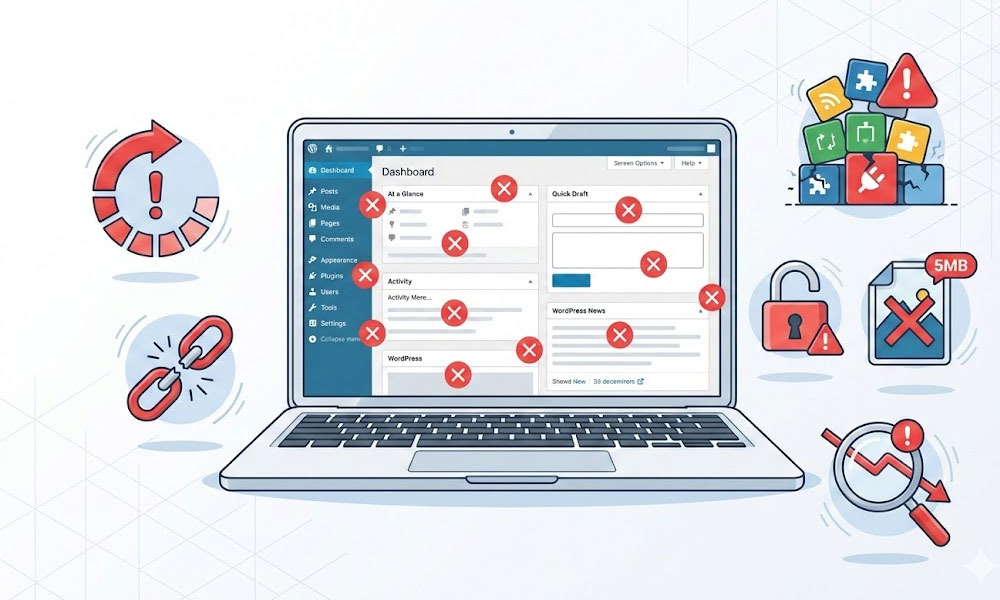
I ran a technical SEO audit for a landscaping company in January 2026. Nice design. Good content. Decent backlinks. But organic traffic had been flat for 14 months and the owner couldn’t figure out why. The answer was 47 minutes into my audit: eleven of the fifteen mistakes below were active on his site simultaneously. Tag archives were indexed, creating 200+ thin pages Google was crawling instead of his service pages. His images averaged 1.8MB each. He had 31 active plugins. Default permalinks were still set to the date-based structure from his 2021 launch. And his robots.txt was accidentally blocking his entire blog directory.
None of these are obscure, complicated problems. They’re common WordPress mistakes that silently drain traffic, slow down your site, and push potential customers toward competitors. I’ve seen every single one of them across 400+ projects on Upwork. Below is each mistake, why it hurts, and the exact fix.
Development Mistakes
These are structural problems baked into the site from day one. They compound over time and get more expensive to fix the longer they sit.
Mistake 1: Too Many Active Plugins
The average WordPress site I audit has 25-35 active plugins. The average site I build has 10-15. Every plugin adds PHP execution time, CSS stylesheets, JavaScript files, and database queries. Many plugins load their assets on every single page even when the functionality is only used on one page. A contact form plugin loading its CSS and JavaScript on your homepage, your blog archive, and your product pages is wasted weight on pages where no form exists.
The real problem: Plugin bloat doesn’t just slow your site. It creates security vulnerabilities (every plugin is an attack vector for malware), increases maintenance complexity (more plugins means more update conflicts), and makes debugging nearly impossible when something breaks.
The fix: Audit every active plugin against three questions. Is it necessary? Can an existing plugin already handle this function? Does it load assets globally or only where needed? Common eliminations: social sharing plugins (replace with simple HTML links, zero JavaScript), slider plugins used on one page but loading everywhere, multiple SEO plugins (pick RankMath, remove everything else), analytics plugins (replace with a GA4 tag in the header, no plugin needed). For plugins you keep, use Asset CleanUp or Perfmatters to disable their CSS and JavaScript on pages where the functionality isn’t used.
Mistake 2: Unoptimized Images
This is the single most common performance problem across every site I’ve touched. A business owner uploads a 4000×3000 pixel photo straight from their phone at 3.5MB. Their content area is 800 pixels wide. The browser downloads the full 3.5MB file, then CSS resizes it to 800 pixels on screen. The other 3200 pixels of width and 3.3MB of data transfer were completely pointless.
The real problem: Images typically account for 50-80% of total page weight. A page with 5 unoptimized photos can weigh 15MB+. On a mobile connection, that’s 8-12 seconds of load time before the page is even usable. Google’s Core Web Vitals LCP metric directly penalizes slow-loading hero images.
The fix: Convert all images to WebP format (30-50% smaller than JPEG at equivalent visual quality). Resize to maximum display dimensions before uploading (if your content area is 800px wide, upload at 800px or 1600px for retina, not 4000px). Use ShortPixel, Imagify, or Smush for automatic compression on upload. Target 80-85% compression quality. Enable lazy loading for below-the-fold images but never lazy-load your hero image (this hurts LCP). Speed optimization often starts and ends with images because the impact is so large.
Mistake 3: Cheap Hosting That Costs More Later
A $4/month shared hosting plan puts your site on a server with hundreds of other sites fighting for the same CPU, RAM, and bandwidth. Server response time (TTFB) on budget shared hosting regularly exceeds 800ms. For context, Google recommends TTFB under 200ms. Your site is already 600ms behind before a single byte of content loads.
The real problem: No amount of speed optimization compensates for a slow server. Caching, image compression, and code optimization reduce what’s being delivered, but they can’t fix the speed at which the server starts delivering. Cheap hosting also means poor security (shared IP reputation, cross-contamination from other sites), unreliable uptime, and support that takes 48 hours to respond when your site goes down.
The fix: Budget hosting ($10-$20/month): Cloudways DigitalOcean, SiteGround GrowBig. Professional hosting ($25-$50/month): Cloudways Vultr HF, Kinsta Starter. The hosting upgrade alone typically improves TTFB by 40-60% and load time by 1-2 seconds. Buy your domain from Namecheap or Cloudflare separately from hosting. This makes future migration significantly easier.
Mistake 4: No Staging Environment
Building and testing changes on a live site is like performing surgery on a patient who’s running a marathon. One wrong click, one plugin conflict, one CSS change that breaks mobile layout, and your business website is down for every visitor until you fix it.
The real problem: Without staging, you can’t test plugin updates before they go live. You can’t preview design changes safely. You can’t experiment with speed optimization settings without risking your live site. Every change is a gamble.
The fix: Most quality hosting providers include one-click staging environments (Cloudways, SiteGround, Kinsta, WP Engine). Create a staging copy. Make all changes there. Test thoroughly. Push to live only after verification. This is standard practice in my development process and included in all maintenance plans.
Mistake 5: Ignoring WordPress and Plugin Updates
I audited a site last month running WordPress 5.9 (released January 2022, four years ago). Twelve plugins were 2+ major versions behind. The site hadn’t been updated in 18 months because the owner was “afraid of breaking something.”
The real problem: Outdated WordPress core and plugins have published security vulnerabilities. Hackers scan for sites running known-vulnerable versions. This is how most WordPress sites get hacked. Beyond security, outdated PHP versions (anything below 8.2) run 20-30% slower than current versions. You’re paying a performance tax for every month you delay updates.
The fix: Update WordPress core, plugins, and themes on a staging site first. Verify nothing breaks. Push updates to live. Repeat weekly or biweekly. If this sounds like too much work, a maintenance plan handles it automatically for $50-$200/month, which is significantly cheaper than a $100-$500 malware cleanup after a preventable hack.
SEO Mistakes
These mistakes are invisible to most site owners. The site looks fine. It functions fine. But Google sees problems that prevent pages from ranking.
Mistake 6: Default Permalink Structure
WordPress ships with permalink structure set to “Plain” (?p=123) or “Day and name” (/2024/01/15/post-title/). Both are terrible for SEO. Google extracts relevance signals from URLs. yoursite.com/?p=247 tells Google nothing. yoursite.com/2024/01/15/my-blog-post/ buries the keyword behind three levels of unnecessary date nesting.
The real problem: Changing permalinks after launch breaks every existing URL. Every internal link, every external backlink, every Google-indexed URL becomes a 404. You then need 301 redirects for every page, which is a significant technical SEO project.
The fix: Set permalinks to /%postname%/ during initial development and never change them. If you’re stuck with a bad permalink structure, the fix requires: generating a complete redirect map, implementing 301 redirects for every URL, updating internal links, and resubmitting your sitemap. This is a migration-level project.
Mistake 7: Indexing Tag Archives, Author Archives, and Attachment Pages
A site with 100 blog posts, 50 tags, and 200 uploaded images can have 350+ thin archive and attachment pages that WordPress generates automatically. Each tag page shows a list of 2-3 posts. Each attachment page shows a single image with zero content. Google crawls all of them, wastes crawl budget, and sees hundreds of thin pages diluting your site’s quality signal.
The real problem: Google’s Helpful Content system evaluates your entire site holistically. Hundreds of thin, automatically-generated pages pull down the quality assessment for your genuinely valuable service and product pages. Your best content competes for crawl attention with empty tag pages.
The fix: In RankMath > Titles & Meta: set Tags to “noindex.” Redirect attachment pages to parent post. Set author archives to noindex (for single-author sites, redirect to about page). Set date archives to noindex. Check Google Search Console > Pages > “Not indexed” to verify these pages stop being submitted. This single fix often improves crawl efficiency by 30-50% on content-heavy sites.
Mistake 8: Missing or Misconfigured Schema Markup
Most WordPress sites I audit have either zero schema markup or auto-generated schema from a plugin that’s partially wrong. Missing schema means Google guesses what your page is about. Wrong schema (like WebPage schema on a product page that should have Product schema) sends conflicting signals.
The real problem: Schema enables rich snippets in search results: star ratings, FAQ dropdowns, price ranges, how-to steps. Pages with rich snippets get 20-30% higher click-through rates than plain results. Without schema, you’re invisible in rich result features even if you rank on page one.
The fix: Configure RankMath schema properly: Organization or Person as the site-wide entity, WebPage schema on all pages with correct subtypes (AboutPage, ContactPage, FAQPage, CollectionPage), Article schema on blog posts, Product schema on WooCommerce products, FAQPage schema on pages with FAQ sections, BreadcrumbList matching visual breadcrumbs. Validate at search.google.com/test/rich-results. This is standard in my WordPress SEO setup.
Mistake 9: No Internal Linking Strategy
Internal links distribute authority across your site and tell Google which pages are most important. Most WordPress sites have internal linking that happened accidentally: a few menu links, maybe a sidebar widget, and random in-content links added without strategy. The result is orphaned pages (zero internal links pointing to them), authority concentrated on the homepage while service pages starve, and no topical clustering.
The real problem: Orphaned pages are essentially invisible to search engines. If no internal link points to a page, Google discovers it only through the sitemap (lower priority) or not at all. Pages with strong internal linking rank higher because Google understands their importance within the site structure.
The fix: Every important page should receive 5-15 internal links from related pages. Service pages should link to related service pages (topical silos). Blog posts should link to 3-5 service pages naturally within the content. Hub pages should link to all related spoke pages. Use descriptive anchor text, not “click here.” My on-page SEO service includes complete internal linking strategy, and the SEO audit identifies all orphaned pages.
Mistake 10: Ignoring Google Search Console Data
Google Search Console tells you exactly what Google sees when it crawls your site. Pages that are indexed, pages that aren’t, crawl errors, manual actions, Core Web Vitals data, and which queries bring traffic. Most WordPress site owners either haven’t set up GSC or set it up and never check it.
The real problem: A site can have 40% of its pages not indexed, and the owner would never know without checking GSC. Crawl errors accumulate silently. Security issues trigger warnings that tank traffic. Manual actions from Google remove pages from search results. All of this is visible in GSC but invisible from the WordPress dashboard.
The fix: Set up GSC (URL prefix or domain property). Submit your XML sitemap. Check monthly at minimum: Index Coverage (how many pages are indexed vs not), Performance (which queries bring traffic, which pages rank), Core Web Vitals (which URLs pass or fail), and Security Issues. Act on every error. My technical SEO service includes GSC analysis and my maintenance plans include monthly GSC monitoring.
Security Mistakes
These are the mistakes that cause emergencies. A hacked site doesn’t just lose traffic. It loses customer trust, gets blocklisted by Google, and costs $100-$500+ to clean up.
Mistake 11: Weak Admin Passwords
“Company123” or “admin2024” as your WordPress admin password is an invitation. Brute force attacks run thousands of password combinations per minute against WordPress login pages. Dictionary-based attacks try every common password variation. If your password is shorter than 12 characters or contains recognizable words, it’s vulnerable.
The real problem: A compromised admin account gives the attacker full access to your site: files, database, user data, WooCommerce customer information, and the ability to inject malware that redirects your visitors to spam sites or serves malicious downloads.
The fix: Use passwords with 16+ characters combining uppercase, lowercase, numbers, and symbols. Use a password manager (Bitwarden, 1Password). Enable two-factor authentication for all admin accounts. Limit login attempts to 5 before lockout. Change the default /wp-admin/ and /wp-login.php/ URLs using a security plugin. These are baseline security measures I implement on every build.
Mistake 12: Unused Themes and Plugins Left Installed
Deactivated plugins and inactive themes still exist on your server. Their files are still accessible. If a vulnerability is discovered in a theme you installed two years ago and never deleted, hackers can exploit it even though it’s not active on your site.
The real problem: Each installed theme and plugin expands your attack surface. A site with 3 themes installed (one active, two inactive) and 10 deactivated plugins has 12 unnecessary entry points for attackers. Most WordPress hacks exploit vulnerabilities in forgotten, un-updated themes and plugins.
The fix: Delete (not just deactivate) every theme except your active theme and one default WordPress theme (kept as fallback). Delete every deactivated plugin. If you might need a plugin in the future, you can reinstall it in 30 seconds from the repository. There’s no reason to keep inactive code on your server. I remove all unused code as part of every development project and maintenance plan.
Mistake 13: No Backup Strategy
“My hosting provider backs up my site” is not a backup strategy. Hosting backups are typically retained for 14-30 days, stored on the same server as your site (if the server fails, backups fail too), and not always complete or easily restorable. I’ve seen hosting providers lose backup data during server migrations.
The real problem: Without independent backups, a site hack, a failed plugin update, or an accidental deletion can mean permanent data loss. Rebuilding a 30-page WordPress site from scratch takes 2-4 weeks and costs $2,000-$5,000+. A backup restores it in 15 minutes.
The fix: Install UpdraftPlus or BlogVault. Configure daily automated backups. Store backups off-site (Google Drive, Dropbox, Amazon S3), not on the hosting server. Keep at least 30 days of daily backups and 3 months of weekly backups. Test restoration quarterly to verify backups actually work. All my maintenance plans include daily automated backups with off-site storage.
Mistake 14: No SSL or Mixed Content
In 2026, this should be solved everywhere, but I still find sites with mixed content issues: the site loads over HTTPS, but some images, scripts, or stylesheets load over HTTP. Browsers show a “Not Secure” warning. Google confirmed HTTPS as a ranking signal in 2014. Mixed content degrades that signal.
The real problem: Beyond rankings, a “Not Secure” warning destroys trust. For WooCommerce stores, a security warning on the checkout page kills conversions instantly. No customer enters credit card information on a page the browser flags as insecure.
The fix: Install SSL certificate (free with Let’s Encrypt, included on most quality hosting). Force HTTPS redirect in .htaccess or hosting panel. Run a mixed content scan (use “Why No Padlock?” or browser DevTools console). Update all internal URLs from HTTP to HTTPS using Better Search Replace plugin. Verify the padlock icon appears on every page, especially checkout and contact forms.
Mistake 15: No File Permission Configuration
WordPress default file permissions are sometimes set too loosely, especially on shared hosting or after manual installations. Files set to 777 (world-writable) allow anyone, including attackers, to modify your site files. This is the digital equivalent of leaving your store unlocked with a sign saying “help yourself.”
The real problem: Loose file permissions are one of the primary ways attackers inject backdoors and malware. Even if your passwords are strong and plugins are updated, incorrect permissions provide an alternative entry point. Most site owners never check permissions because they’re not visible from the WordPress dashboard.
The fix: Directories: 755. Files: 644. wp-config.php: 600 or 640. .htaccess: 644. Check via FTP/SFTP client or hosting file manager. Add define('DISALLOW_FILE_EDIT', true); to wp-config.php to prevent code editing from the WordPress admin panel. Block PHP execution in the uploads directory by adding deny from all to wp-content/uploads/.htaccess. These are standard security hardening steps I implement on every project.
How Many of These WordPress Mistakes Are on Your Site?
Most site owners reading this recognized at least 5-6 problems on their own sites. That’s normal. These mistakes don’t announce themselves. They accumulate quietly while your traffic plateaus and your competitors with properly configured sites rank higher for the same keywords.
Here’s the thing: every single mistake above is fixable. Some take 5 minutes (deleting unused plugins). Some take a few hours (image optimization, schema setup). Some require a professional to avoid making things worse (permalink changes, security hardening).
The expensive path is ignoring them until your site gets hacked, your rankings drop, or a potential client bounces because your page took 6 seconds to load. The cost-effective path is fixing them now, either yourself using this guide or with professional help.
Frequently Asked Questions
How do I check if my WordPress site has these mistakes?
Start with Google Search Console for SEO issues (indexing, crawl errors). Run your site through PageSpeed Insights for speed issues. Check your plugin list count in WordPress admin. Verify SSL with the browser padlock icon. For a comprehensive audit covering all 15 areas, see my SEO audit service.
Which mistakes should I fix first?
Security first (passwords, backups, updates) because a hacked site makes everything else irrelevant. Then speed (hosting, images, plugins) because slow sites lose visitors before they see your content. Then SEO (permalinks, schema, internal links, GSC) because these compound over time.
Can I fix all of these myself?
Mistakes 1-2 (plugins, images), 11-13 (passwords, unused themes, backups), and 14 (SSL) are DIY-friendly. Mistakes 6-10 (SEO configuration) require RankMath knowledge. Mistakes 3-5 (hosting, staging, updates) and 15 (permissions) require server access and technical confidence.
How much does it cost to fix all 15 mistakes?
DIY: $0-$200 (hosting upgrade is the main cost). Professional fix: $500-$1,500 depending on how many mistakes are present and the site’s complexity. Compare that to the cost of a hacked site ($100-$500 cleanup + lost revenue + reputation damage) or a full site rebuild ($2,000-$8,000). Prevention is always cheaper.
How do I prevent these mistakes on a new site?
Hire a developer who addresses all 15 during the initial build. My WordPress development process handles every item on this list as standard practice: optimized hosting, lean plugin stack, compressed images, correct permalinks, schema markup, internal linking strategy, security hardening, and maintenance plan setup. Full pricing on the cost page. Explore my portfolio, case studies, and reviews for verified results. Related services: WordPress design, theme customization, Elementor builds, WooCommerce stores, membership sites, advanced solutions, on-page SEO, link building, and migration. Learn more on the about page or check the FAQ. Compare platforms: WordPress vs Shopify and WordPress vs Wix.
Want All 15 Mistakes Found and Fixed?
I’ll audit your site against every item on this list plus 35 more checks from my full technical SEO checklist. You get a prioritized report with exact fixes and estimated impact. Fixed price on Upwork. No hourly surprises.